
How to install the Ariko chat on your website
Two parts: the business owner copies the code from Ariko, and whoever runs the website pastes it. Running the site, not the business? Skip to your part.
Updated:
For the business owner: the code and the list
-
1. Copy the code
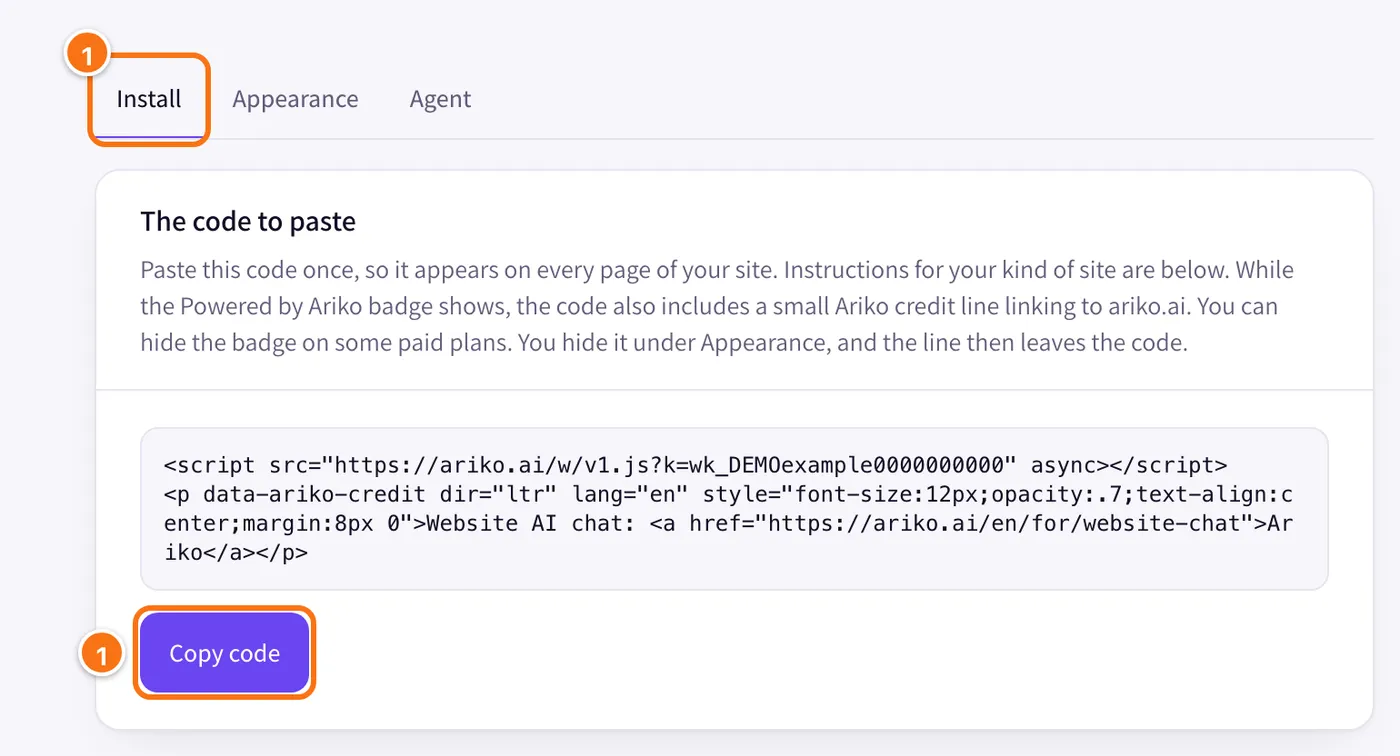
In Ariko, open Website chat, and on the Install tab press Copy code. The code is unique to your business. Paste it once, so it appears on every page of your site.
-
2. Check your site's address is on the list
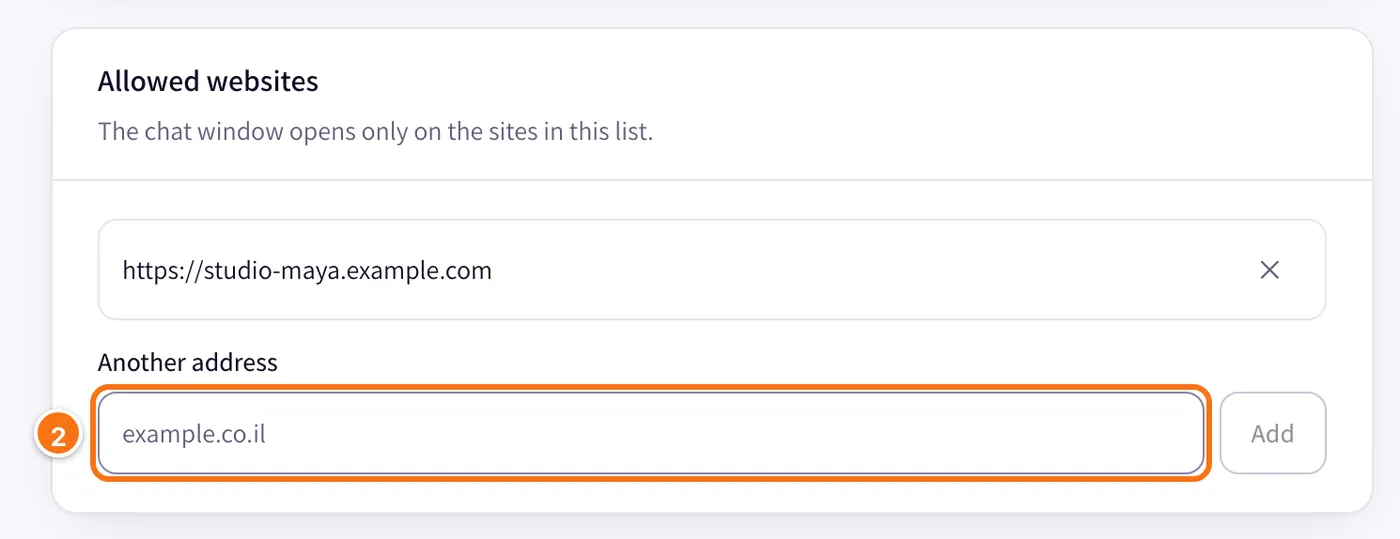
Under Allowed websites: The chat window opens only on the sites in this list. Does the site have another address, say with or without www? Add it under Another address, then press Save list. Until you save, the address is not on the list.
-
3. Choose what your site is built with
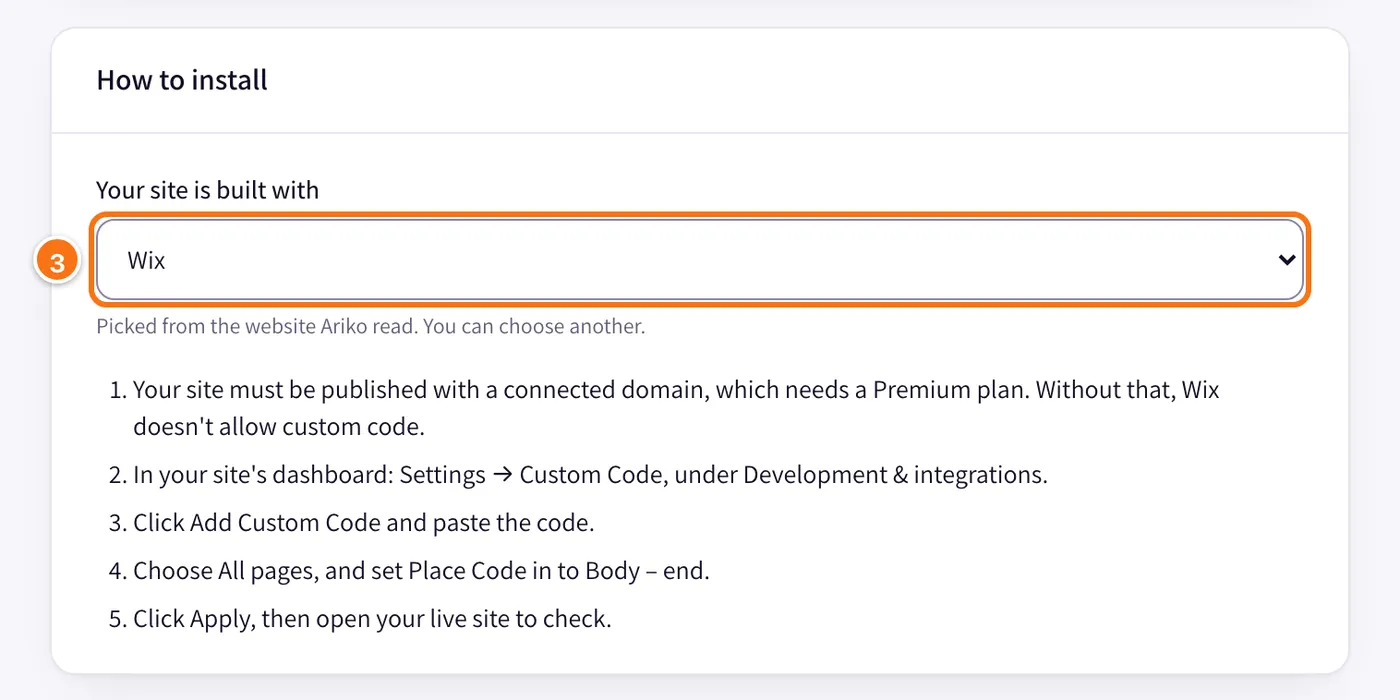
Under How to install, choose your kind of site and its steps appear. The same steps are below too, in the part for your web person.
-
4. Someone else runs the site? Send them the steps
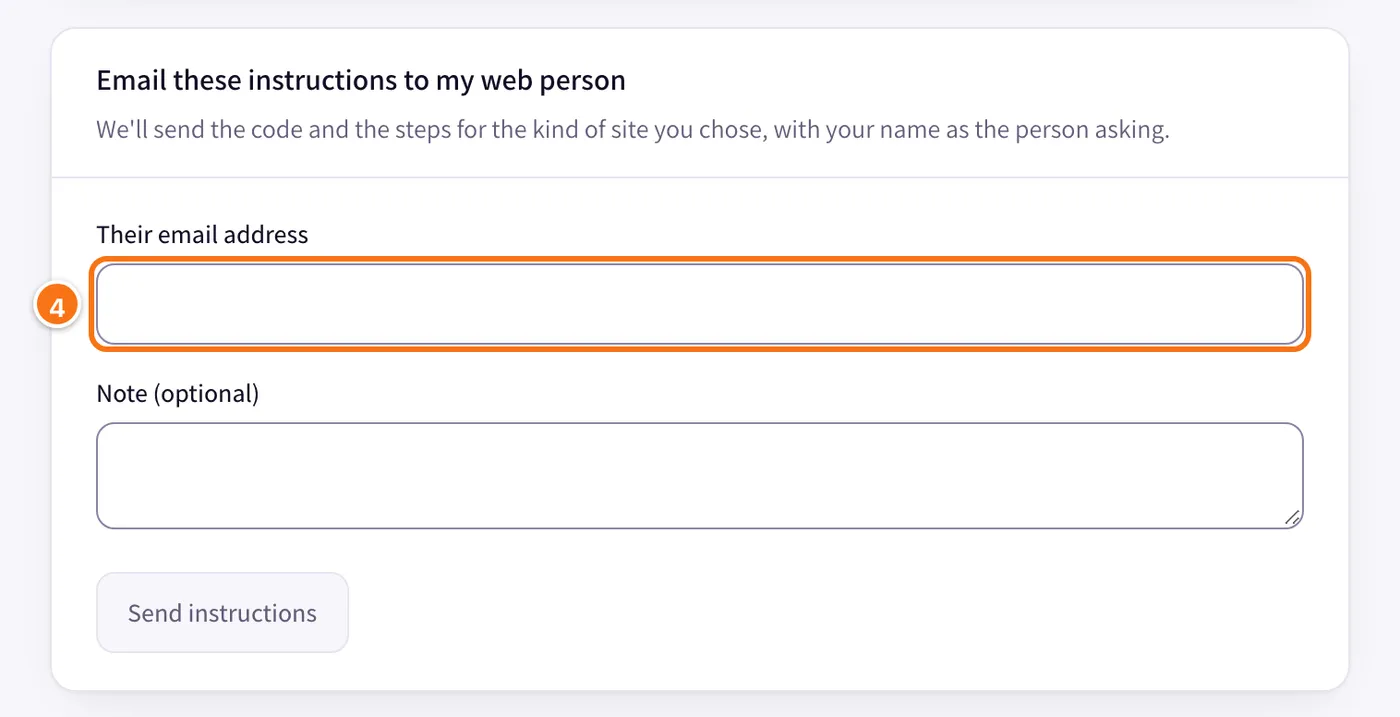
Under Email these instructions to my web person, enter their email and press Send instructions. We'll send the code and the steps for the kind of site you chose, with your name as the person asking. You can also send them a link to this page.
-
5. Check that the chat is live
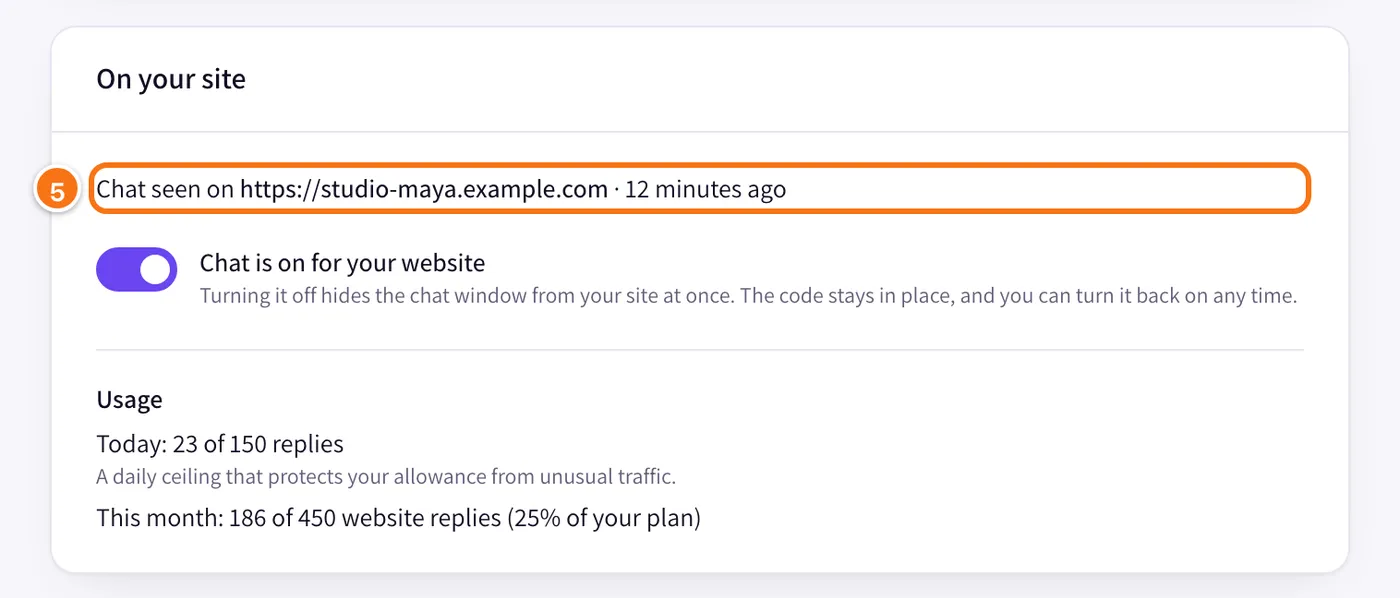
Once the code is pasted, open your site once. On your site then shows Chat seen on with your site's address. Until then it says: We haven't seen the chat on your site yet. Once the code is in, open your site once and this updates.
For your web person
You don't need an Ariko account. The business owner sends you the code: one script line, usually followed by a small credit line linking to Ariko. Paste both as they are, once, into the template every page uses, ideally just before the closing body tag. The code looks like this, but use only the code the business sent you:
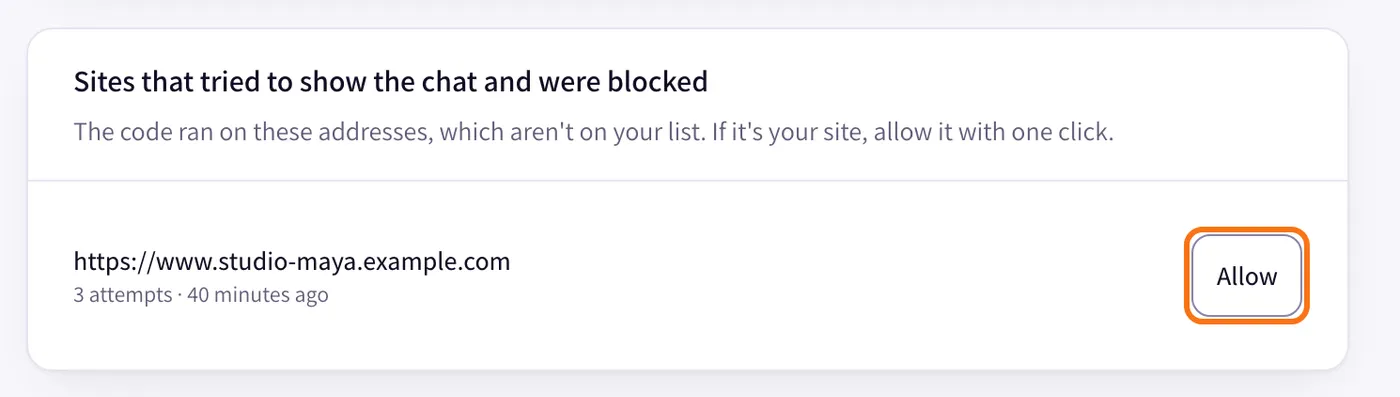
<script src="https://ariko.ai/w/v1.js?k=wk_…" async></script>The script loads with async, so it does not hold up the page. The chat window opens only on addresses the business approved. Pasted it on another address, such as a staging site or one with www? It is blocked, and the business owner sees it in Ariko and allows it with one click (shown below).
Where to paste it, by platform
WordPress
- In WordPress admin, go to Plugins → Add New Plugin. Search for WPCode and install it.
- Activate the plugin. A Code Snippets menu appears in the sidebar.
- Go to Code Snippets → Header & Footer.
- Paste the code into the Footer box.
- Click Save Changes, then open your site to check.
Elementor
- In WordPress admin: Elementor → Custom Code → Add New Custom Code. This is an Elementor Pro feature.
- Paste the code and set Location to </body> – End.
- Click Publish. In the conditions window choose Entire Site and save.
- Without Elementor Pro, follow the WordPress steps.
Wix
- Your site must be published with a connected domain, which needs a Premium plan. Without that, Wix doesn't allow custom code.
- In your site's dashboard: Settings → Custom Code, under Development & integrations.
- Click Add Custom Code and paste the code.
- Choose All pages, and set Place Code in to Body – end.
- Click Apply, then open your live site to check.
Shopify
- In Shopify admin, go to Online Store.
- Next to your live theme, click ⋯ then Edit code.
- Open theme.liquid in the layout folder.
- Paste the code on the line before the closing </body> tag.
- Click Save, then open your store to check.
Webflow
- Adding code needs a paid plan: an active Site plan, or a paid Workspace.
- Open Site settings → the Custom code tab.
- Paste the code into Footer code and save.
- Publish the site. The code doesn't go live until you do.
Squarespace
- Adding code needs a paid plan other than Basic, such as Core, Plus or Advanced.
- Open the Pages panel; at the bottom: Custom Code → Code Injection. On version 7.0 sites it's under Website Tools.
- Paste the code into the Footer box.
- Click Save, then open your site to check.
Google Tag Manager
- In Google Tag Manager: Tags → New.
- Click Tag Configuration, choose Custom HTML and paste the code.
- Under Triggering choose All Pages, then save.
- Click Submit, then Publish. The tag doesn't run on your site until you do.
- Open your site to check.
Something else
- Paste the code once, into the template every page uses — ideally just before the end of the page.
- In site builders, look for an option like Custom code, Code injection or Footer code.
- Not sure where? Search your platform's help for how to add code to every page.
Stuck?
I pasted the code and the chat doesn't show
Check in order: (1) the change was saved and published. On Wix, Webflow and Google Tag Manager the code doesn't reach the live site until you publish. (2) the site's address is on the allowed websites list in Ariko, exactly as the browser shows it. (3) the “Chat is on for your website” switch is on. (4) open the site in a private window, to skip an old copy your browser kept.
What is the small line under the script?
A small credit line linking to Ariko's website. It is part of the code while the Powered by Ariko badge shows in the chat window. Paste it as it is.
Do I paste the code on every page separately?
No. Paste it once, somewhere every page shares: the footer, the main template, or a site-wide code setting. That puts it on every page.
Want to pause the chat for a while?
Turning it off hides the chat window from your site at once. The code stays in place, and you can turn it back on any time.
Didn't find the answer? Write to us at hello@ariko.ai and we'll help.
More guides: First steps · Connecting WhatsApp · Connecting Google Calendar · Adding team members · Your business's information