
First steps in Ariko
Just invited to Ariko? These are the five things worth knowing on day one. A three-minute read.
Updated:
-
1. Sign in for the first time and choose a password
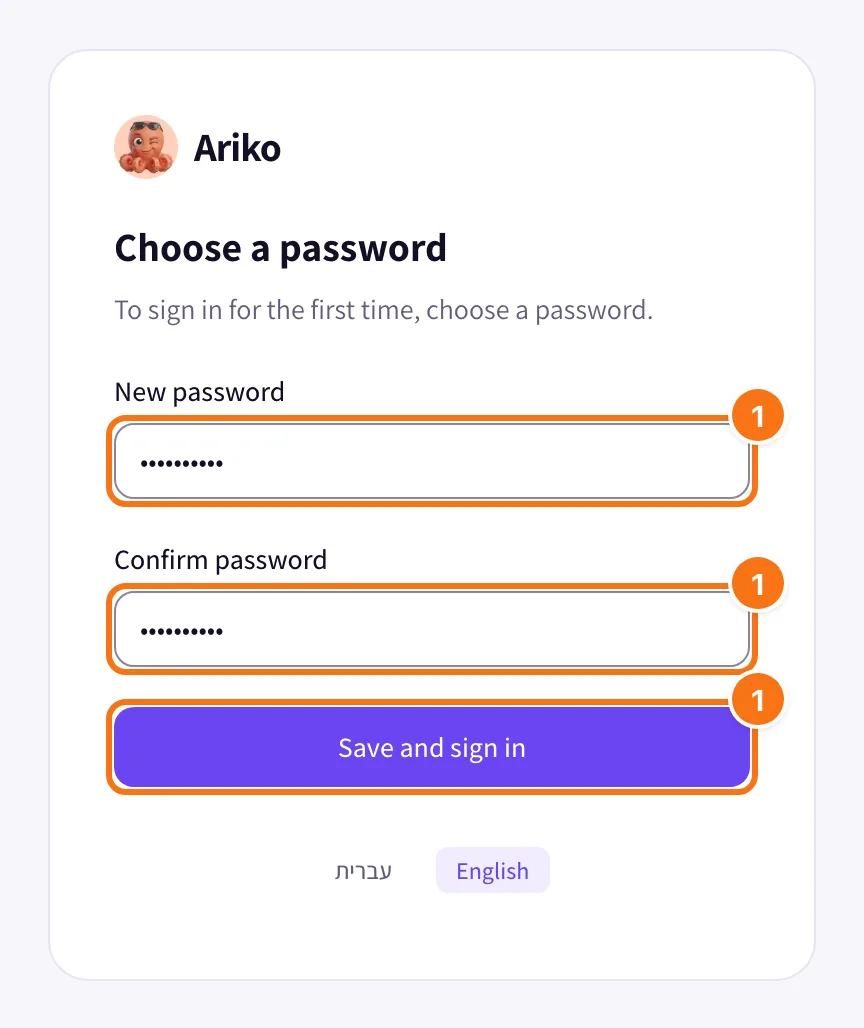
You received an email titled “You've been invited to…” with the business's name. Press “Choose a password and sign in” in it. The link works for 60 minutes and only once.
Choose a password of at least 8 characters, type it again and press Save and sign in. The first time you sign in, you accept the terms of use and the privacy policy, once.
From now on, sign in at ariko.ai/login with your email and password. Got a temporary password instead of an email? Sign in with it, then change it in My account.
-
2. The inbox: every conversation, and what's waiting for you
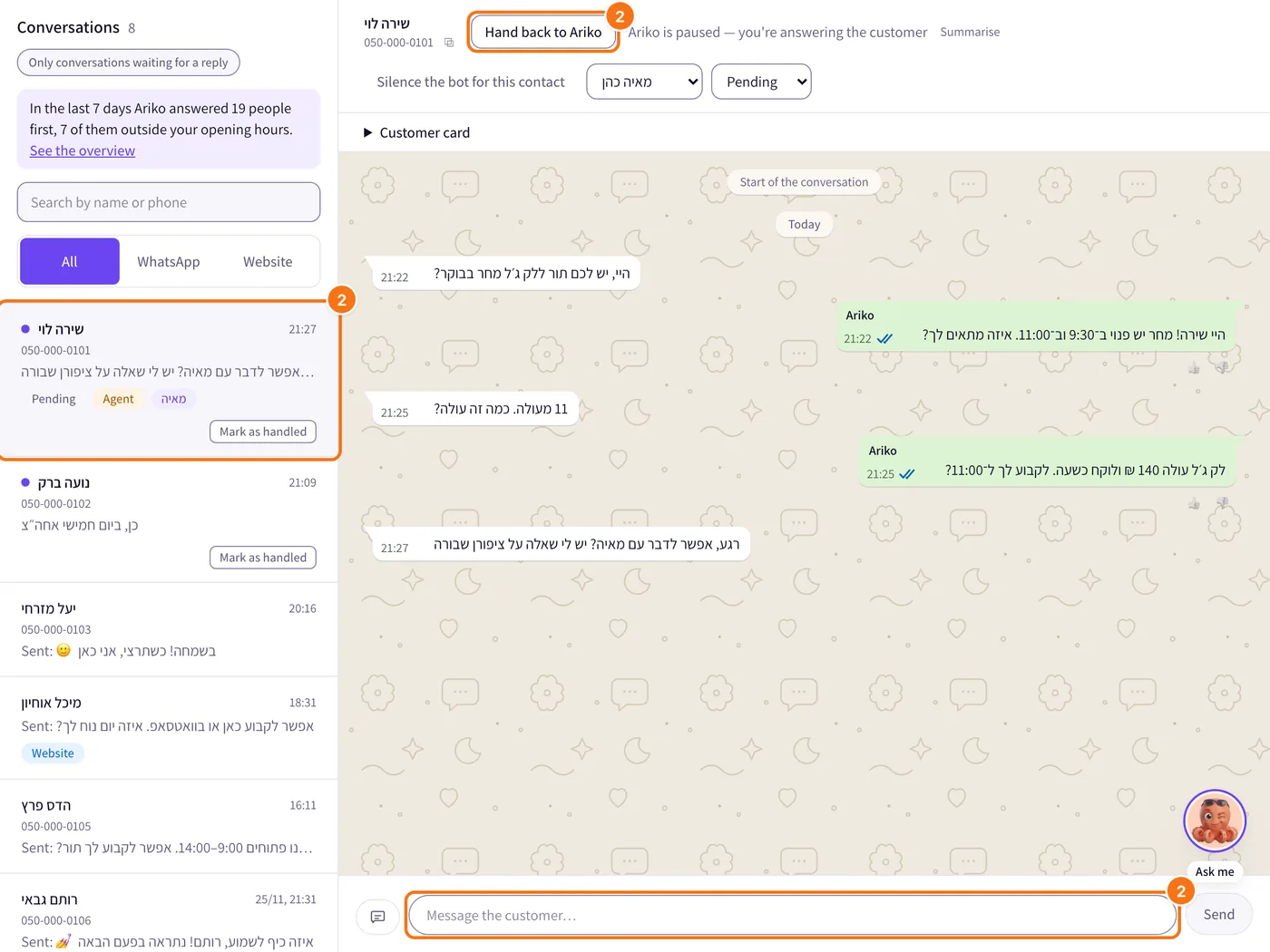
In the Inbox you see every conversation Ariko has with customers, and you can read every message. A conversation where the customer wrote and hasn't had an answer yet is marked with a dot.
When Ariko can't answer, it offers to pass the conversation to the team. A conversation handed to you is marked Pending, and you get a notification (step 5). Meanwhile Ariko keeps answering other questions in the same conversation. A customer who asks outright for a person is passed to you at once, and the conversation is also marked Agent: Ariko isn't answering in it now.
To reply, type in the box at the bottom and send. Once you've answered the customer, from the inbox or from your phone (on a number connected together with the WhatsApp Business app), the conversation is yours and Ariko stops answering in it. You can also press Take over without writing, but such a conversation doesn't go back to Ariko by itself.
Ariko comes back to the conversation when you press Hand back to Ariko, or by itself: if the customer writes again after the set time has passed since the team's last message. The default is 24 hours, and a manager changes it in Business settings, under Ariko returns to a conversation by itself. A customer who asked for a person and hasn't had your answer yet stays with you, and so does a conversation you started yourself that Ariko never answered in.
-
3. The test chat: talk to Ariko as a customer
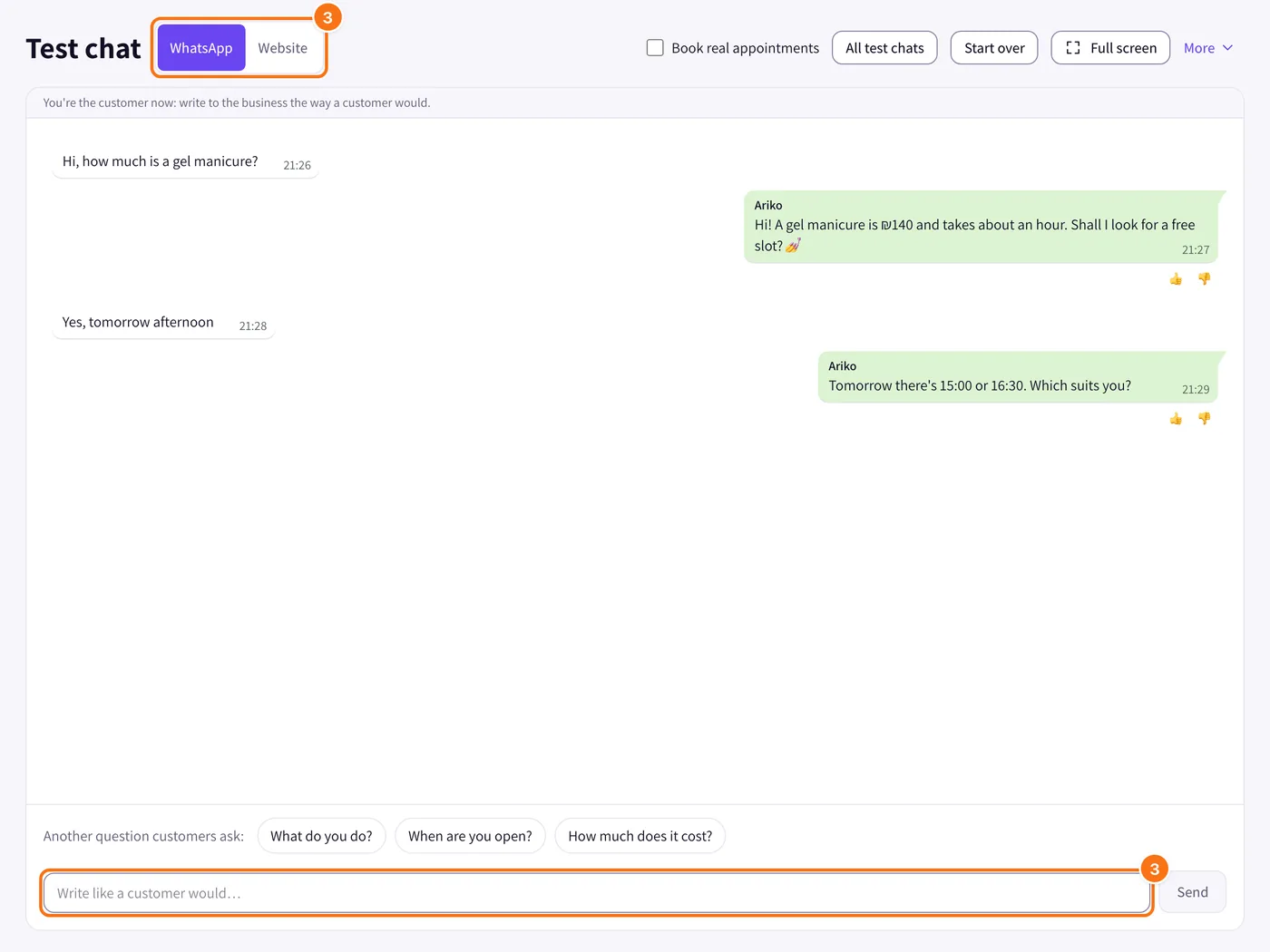
In the Test chat you are the customer. Write to Ariko the way a customer would, and see exactly how it answers. The conversation is private and reaches no customer.
Next to the title, choose whether to test Ariko as on WhatsApp or as in the website chat. Start over begins a clean conversation. An appointment made here doesn't go into the calendar unless you tick Book real appointments.
Answer not quite right? Something is missing from the business's information. The business information guide explains how to add and fix it.
-
4. Silence Ariko for personal numbers
Family, friends, suppliers or long-standing customers you answer yourself: you can ask Ariko not to answer them.
In a conversation in the Inbox, press Silence the bot for this contact and confirm. On a phone the button is behind the three dots at the top of the conversation.
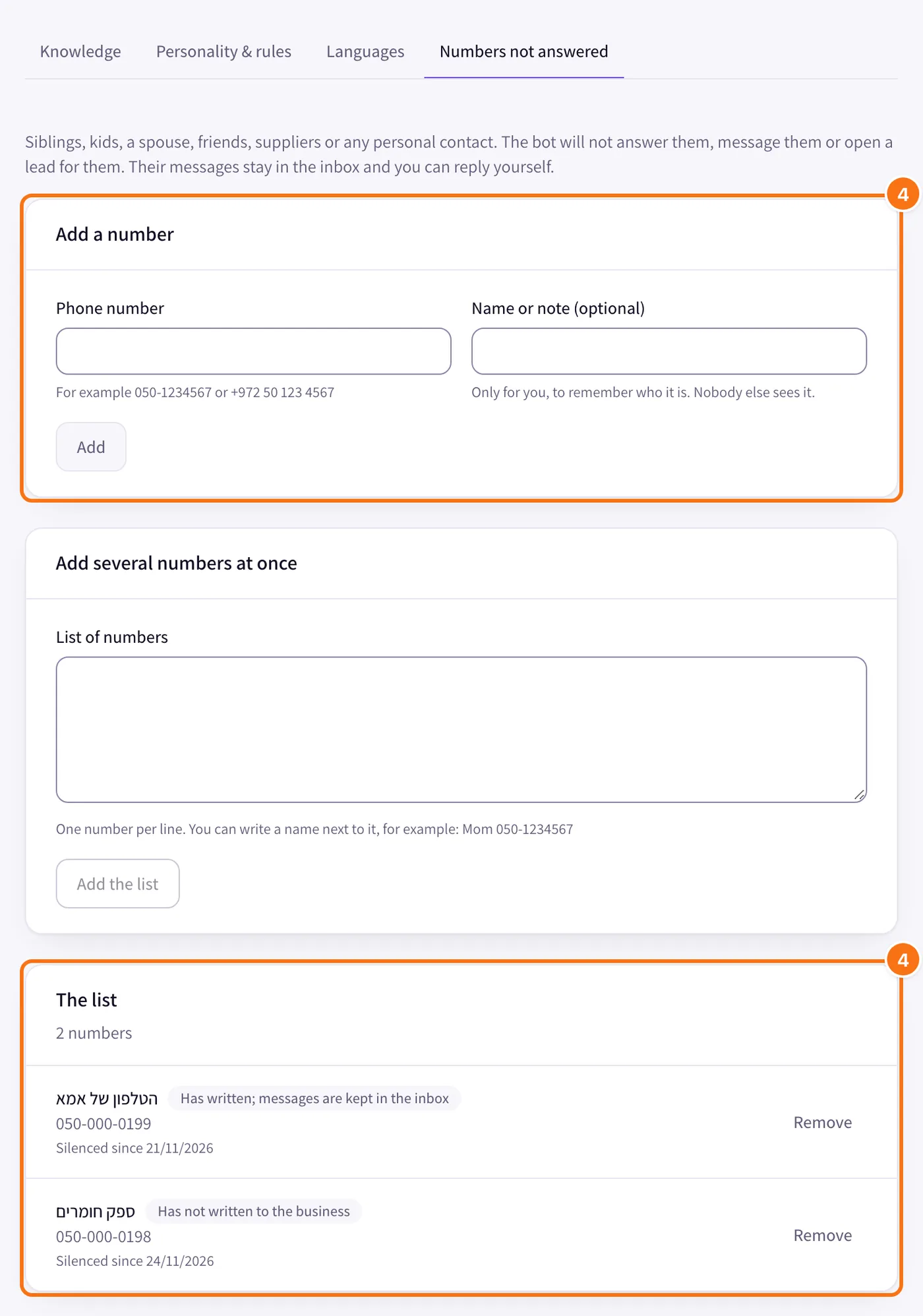
For a number that hasn't written to the business yet: in Ariko's brain, on the Numbers not answered tab, add a number under Add a number, or several under Add several numbers at once.
Ariko doesn't answer a silenced number and doesn't send it messages or reminders. Its messages are kept in the inbox, and you answer it yourself. Undo with Stop silencing in the conversation or Remove on the list. Only a manager can silence and undo.
-
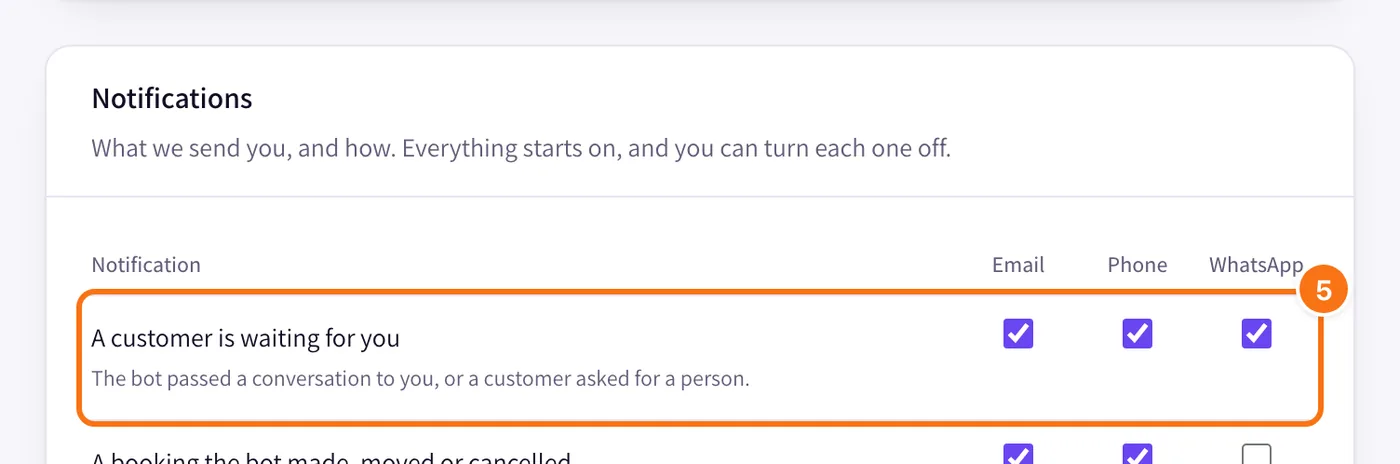
5. Where you get notified when a customer is waiting
When a conversation is handed to you, an email goes to the address in Contact email, in Business settings. If that field is empty, it goes to the address the business's managers sign in with. Every email links straight to the conversation.
In My account (press your name at the bottom of the menu), on the Notifications card, you see what is sent and how, and you can turn each notification off on its own.
For an instant notification on your phone, install Ariko as an app. Open Ariko in your phone's browser, open the menu, press the gear next to your name at the bottom of the menu, then Install the app. On an iPhone: in the browser's share button choose “Add to Home Screen” (iOS 16.4 or later). Don't see the button? On Android, open Ariko in Chrome.
Then open Ariko from its icon, go to My account → Phone notifications, and press Turn on notifications. Each device is turned on separately: managers and agents each turn it on on their own device.
What's next
- Your business's informationTeach Ariko about the business: files, text, the website and rules
- Connecting Google CalendarConnect the calendar, and Ariko books appointments by itself
- Connecting WhatsAppConnect the business's WhatsApp number to Ariko
- Adding team membersInvite your staff and give each one a role
Stuck?
I got a temporary password, not an email
Sign in at ariko.ai/login with your email and the temporary password, then change it in My account, on the Password card.
The link in the email doesn't work
The link works for 60 minutes and only once. If the time has passed, press Forgot your password? on the sign-in page and get a new link to the same address. Check your spam folder too.
I don't see the silence button or the list
Silencing is for managers. If your role is agent or view only, ask one of the business's managers.
Ariko didn't come back to the conversation
It comes back by itself only when the customer writes again, only after the time set in Ariko returns to a conversation by itself, and only if someone on the team wrote in the conversation. To hand it back right away, press Hand back to Ariko in the conversation.
Didn't find the answer? Write to us at hello@ariko.ai and we'll help.
More guides: Connecting WhatsApp · Installing the website chat · Connecting Google Calendar · Adding team members · Your business's information