
How to connect your business's WhatsApp to Ariko
Every screen on the way, in order: from the button in Ariko to the number showing up here. It usually takes a few minutes.
Updated:
Before you start
- A paid plan. On the free plan, the connection screen asks you to choose a plan first.
- For the WhatsApp Business path: the phone the business number runs on, with the app up to date and the business number registered and verified in it.
- For the dedicated-number path: a SIM that is not registered on any WhatsApp, in a phone that can receive an SMS or a call.
- A Facebook account you know the password for.
- A computer is easiest: you scan the QR code with the phone, so it helps to have it on another screen.
-
1. Choose a path
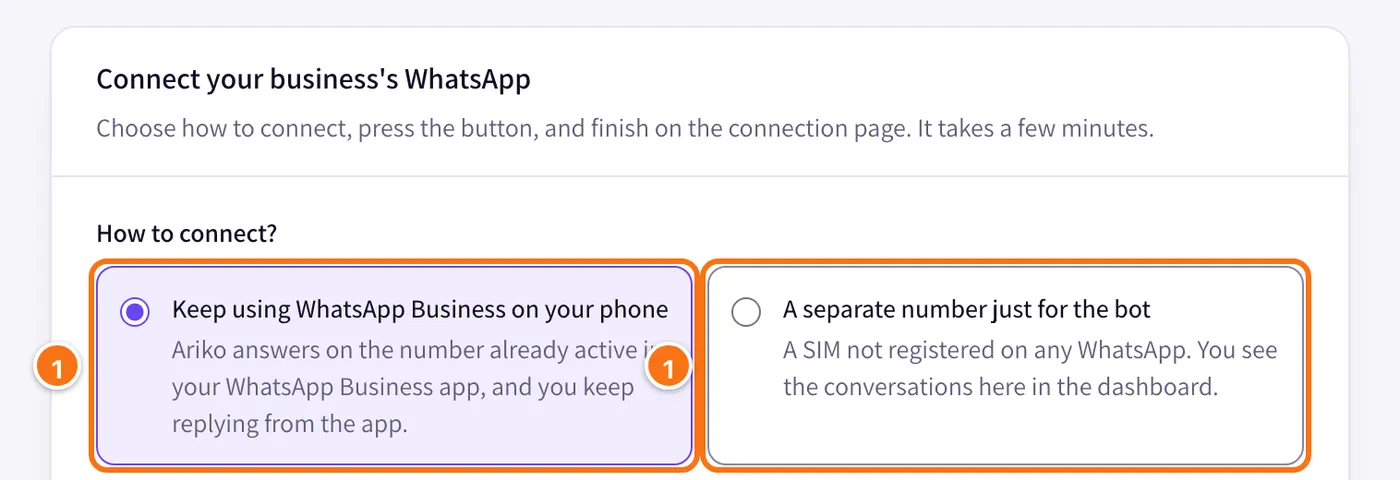
Sign in to Ariko and open WhatsApp connection in the menu. Choose Keep using WhatsApp Business on your phone if you keep answering from the app on your phone too, or A separate number just for the bot for a new SIM used only by the bot.
-
2. Press the button
Press Connect my WhatsApp. The connection page opens in a new tab.

-
3. On the connection page, choose the same path
The connection page belongs to a Meta-verified partner and is in English. Meta's window appears in your Facebook account's language; the labels here are Meta's English ones.
Two cards: Connect WhatsApp Business App if you chose to keep WhatsApp Business, or Connect a dedicated phone number for a separate number.
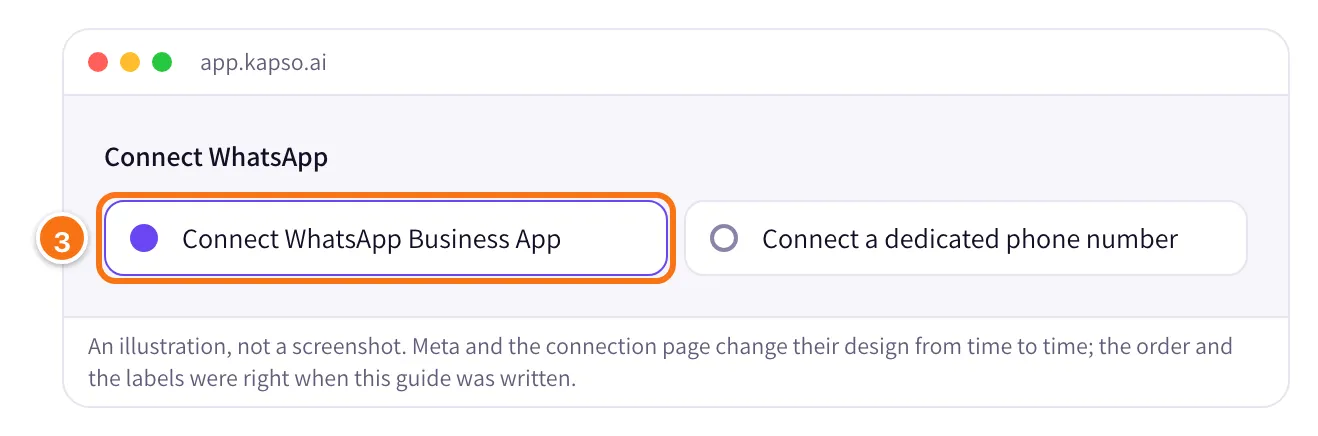
An illustration from the guide inside the dashboard, not a screenshot -
4. Tick the box and open Facebook
At the top there is a warning: after connecting, you need to send a message from the app at least once every 14 days, or the connection drops. Below it is a short video of Meta's screens. Tick the box under the video and press Connect your app. A Facebook window opens.
On the dedicated-number path this page may look different. Follow its button until the Facebook window opens.
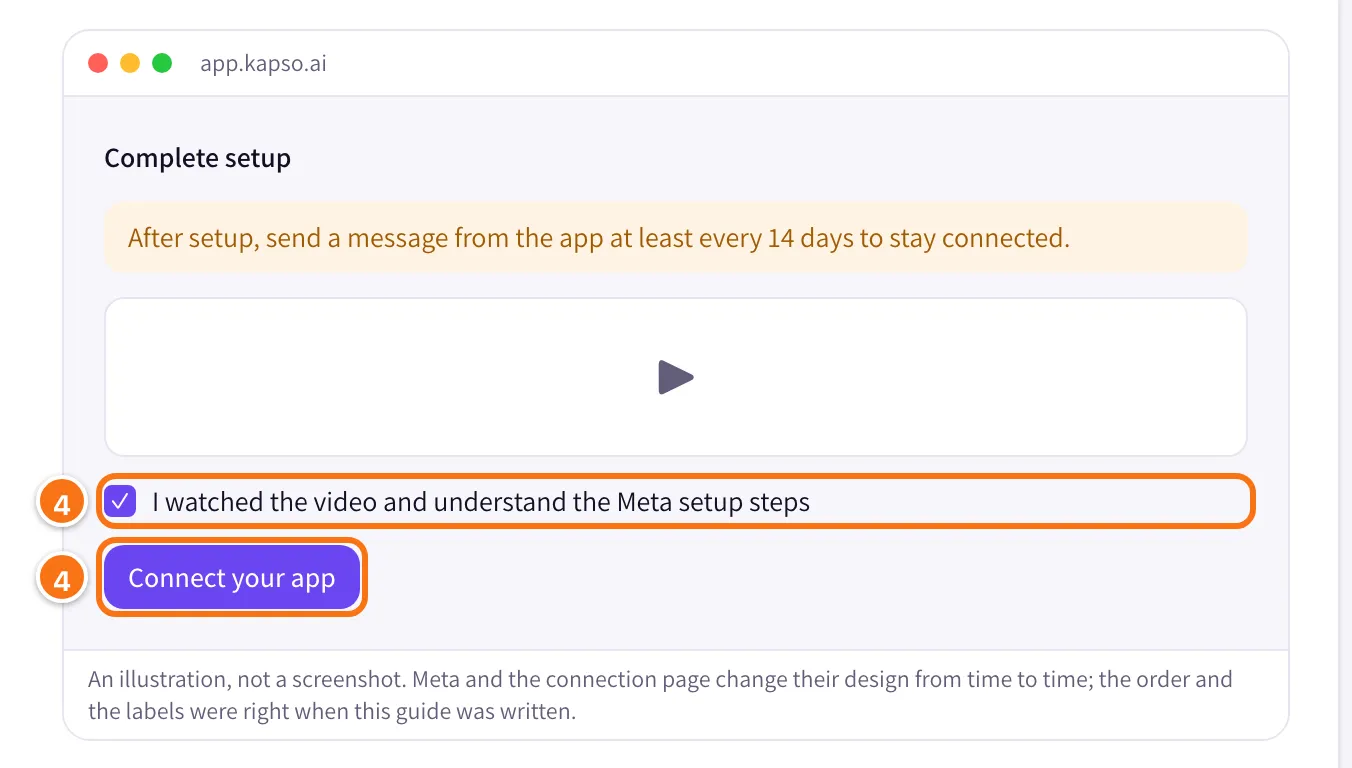
An illustration from the guide inside the dashboard, not a screenshot -
5. Facebook and Meta: continue with your account
If the browser is already signed in to Facebook, your account is shown; press Continue. Want a different account? Switch it here.
It explains that you are connecting your account to the connection partner, whose name is in the title. Press Continue.
-
6. Choose the business's phone number
The Phone number menu lists the numbers already in your Meta account, some marked Registered. Choose the business number. Not on the list? Choose Add a new phone number and enter it: country Israel (+972), and the number without its leading 0, for example 50 000 0000. Press Next.
The number says Not eligible? See Stuck below.
On the dedicated-number path, at or near this step Meta sends a code to the SIM by SMS or call, and you type it in. On the WhatsApp Business path you never type such a code.
Business outside Israel? Choose your own country and enter your number in its local format, and in the next steps pick your own time zone.
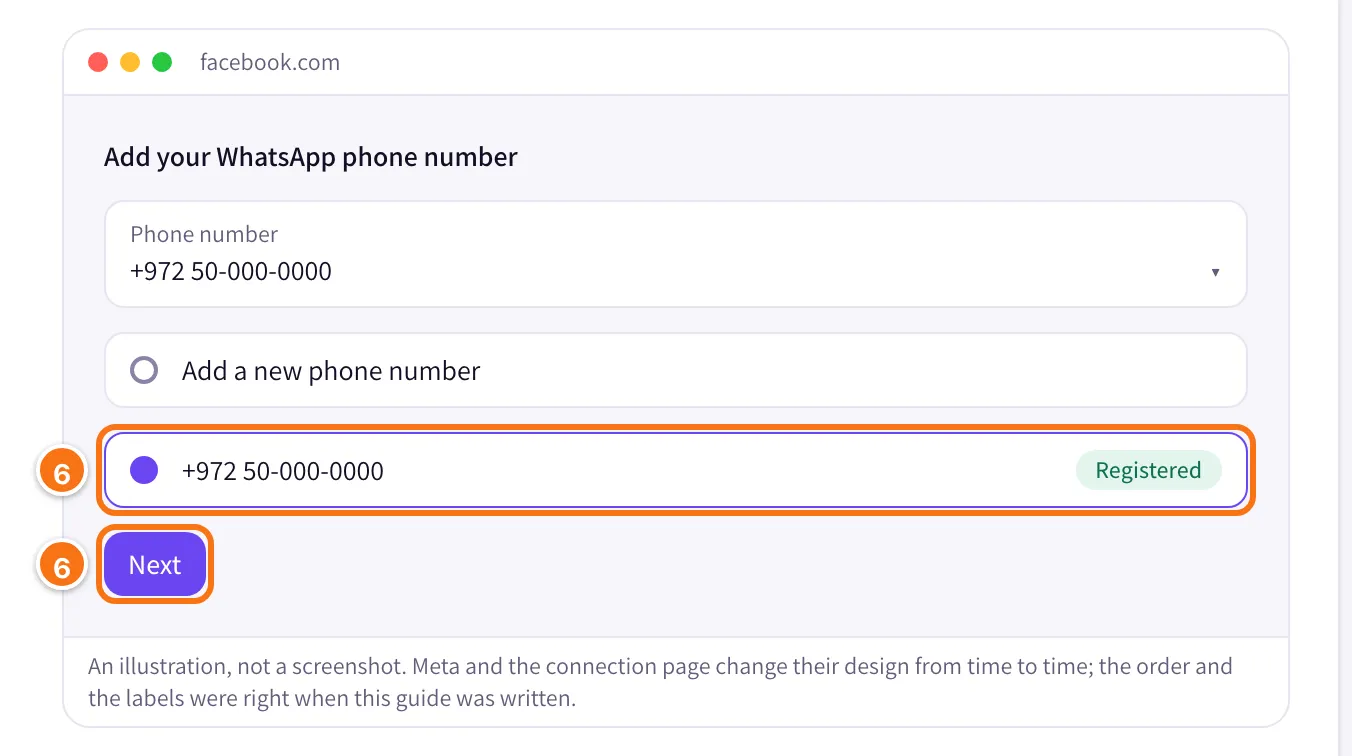
An illustration from the guide inside the dashboard, not a screenshot -
7. Confirm the profile, business portfolio and time zone
Meta shows the WhatsApp Business profile card: the business name, the number, and the website if one is set in the app. Wrong number? Back. All correct? Next.
In the Business portfolio menu, choose the business's portfolio on Meta. None yet? Create one, and Meta asks for a business name, website and country. (No website? There is a note on that below.)
The account name is the business's name as customers know it. Time zone: Asia/Jerusalem. Press Next.
-
8. Confirm what is shared
Meta lists what will be shared: the business and the WhatsApp account, and permission to manage the account, manage conversations and receive updates about them. Without this, Ariko cannot answer. Press Confirm.
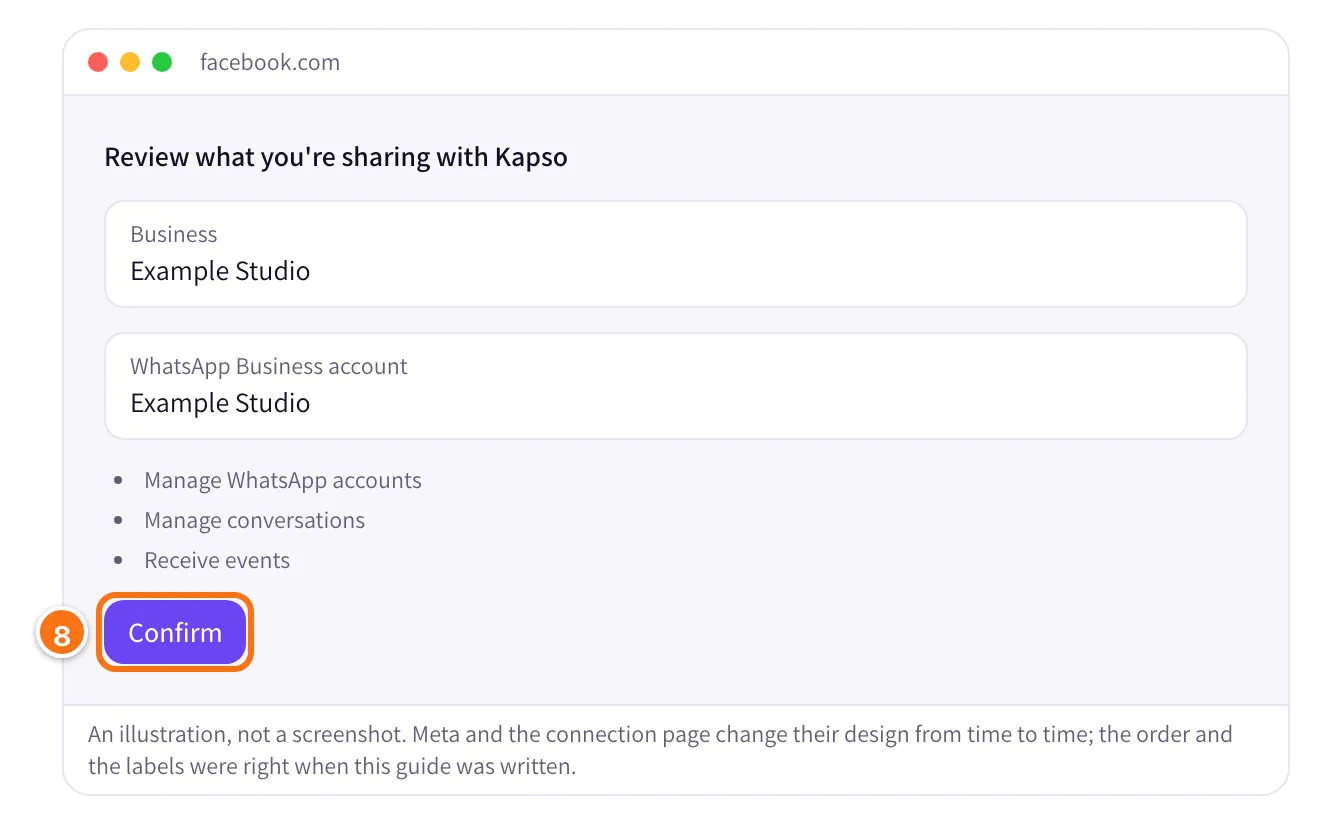
An illustration from the guide inside the dashboard, not a screenshot -
9. Scan the QR code with your phone (WhatsApp Business path)
A QR code appears on screen. Open WhatsApp Business on your phone and scan it. At the end you see that the account is connected; press Continue to setup.
This is how you connect from the phone without scanning: copy the access code shown on Meta's screen next to the QR code and paste it in the app. Then go back to the browser tab and finish there — without that, the connection isn't saved.
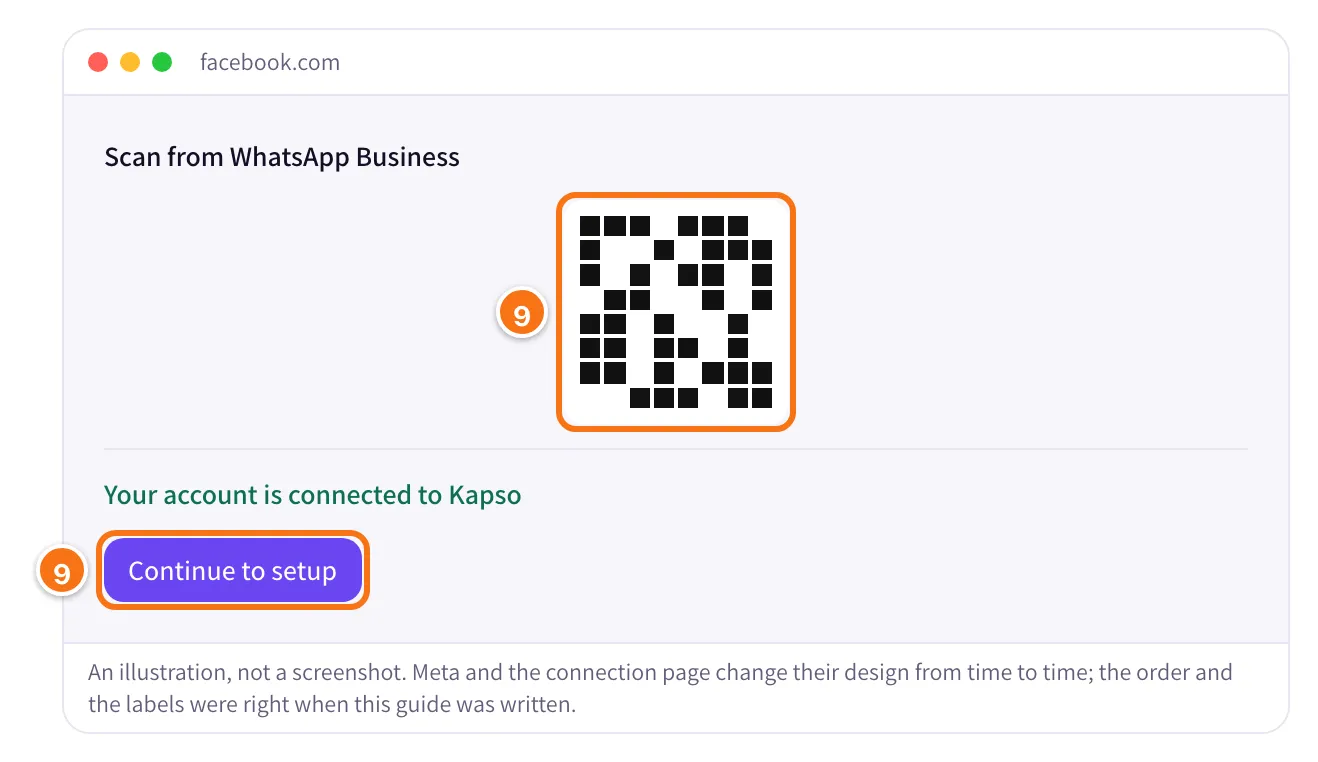
An illustration from the guide inside the dashboard, not a screenshot -
10. Back to Ariko
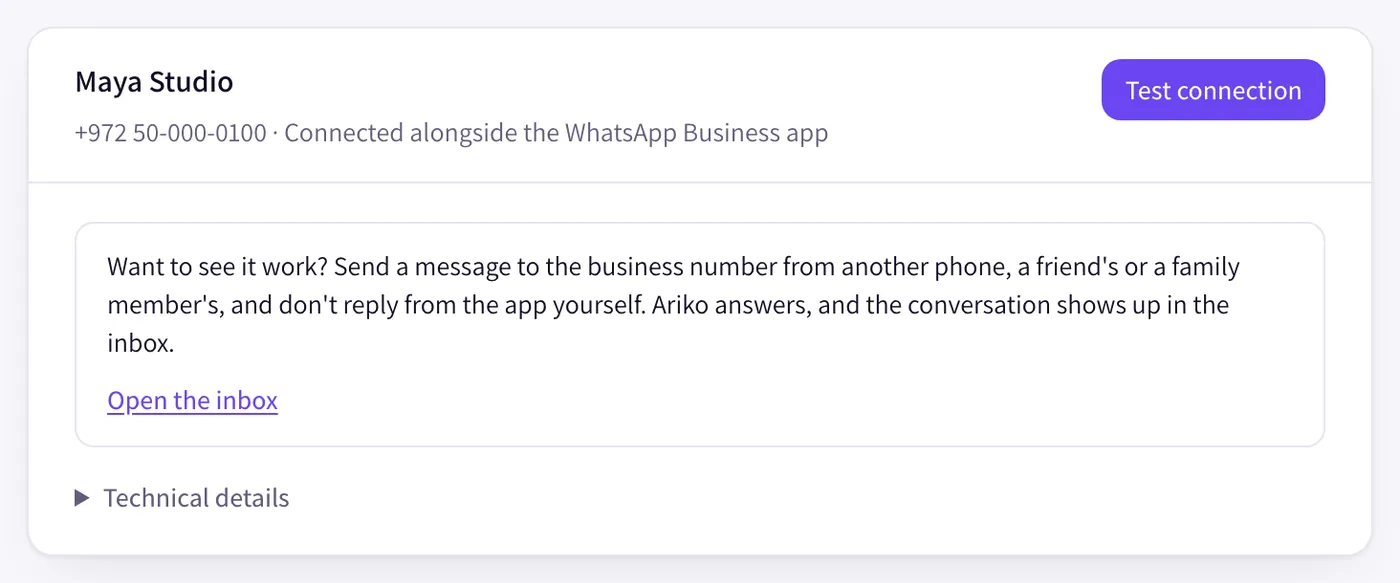
The number appears on the WhatsApp connection screen within a minute, and there is no need to connect again. It did not appear? Open Stuck? Meta's messages and what to do there.
Want to see it work? Send a message to the business number from another phone, a friend's or a family member's, and don't reply from the app yourself. Ariko answers, and the conversation shows up in the inbox.
Stuck?
A message from the app every 14 days
On the WhatsApp Business path, send a message from the app on your phone at least once every 14 days. Otherwise the connection drops and you need to connect again.
The Facebook window did not open?
The browser probably blocked it. Allow pop-ups for the page and press again. Closed halfway? No harm done: go back to the connection screen in Ariko and carry on from the same point.
The number says Not eligible?
For now Meta will not connect this number together with the app, and it does not say why. There is no set waiting time. You can keep using the app as usual and try again later, or connect a separate number for the bot. Deleting and reopening the WhatsApp Business account does not help.
Got a code by SMS or call?
On the dedicated-number path that is the normal step: type it in, and it connects the number to the bot only, without the app. On the WhatsApp Business path no such code should arrive. If one does, stop, do not type it, and write to us.
The business has no website?
When you create a new business portfolio, Meta asks for a website address. You can try entering the address of the business's Facebook or Instagram page.
The number is already connected to another service?
The scan may be skipped, and Meta may show the account as connected straight away. If the number does not appear in Ariko within a few minutes, write to us. Do not delete anything.
The number didn't appear in Ariko?
Wait a minute and refresh the screen. Still nothing? On the WhatsApp connection screen, open Stuck? Meta's messages and what to do: it explains each of Meta's messages. Don't start a new connection before checking there.
Didn't find the answer? Write to us at hello@ariko.ai and we'll help.
More guides: First steps · Installing the website chat · Connecting Google Calendar · Adding team members · Your business's information