
How to teach Ariko about your business
Ariko answers customers on WhatsApp and on your website from your business's own information. What isn't written there, it doesn't make up: it says someone from the team will answer, and offers to pass it on.
Updated:
-
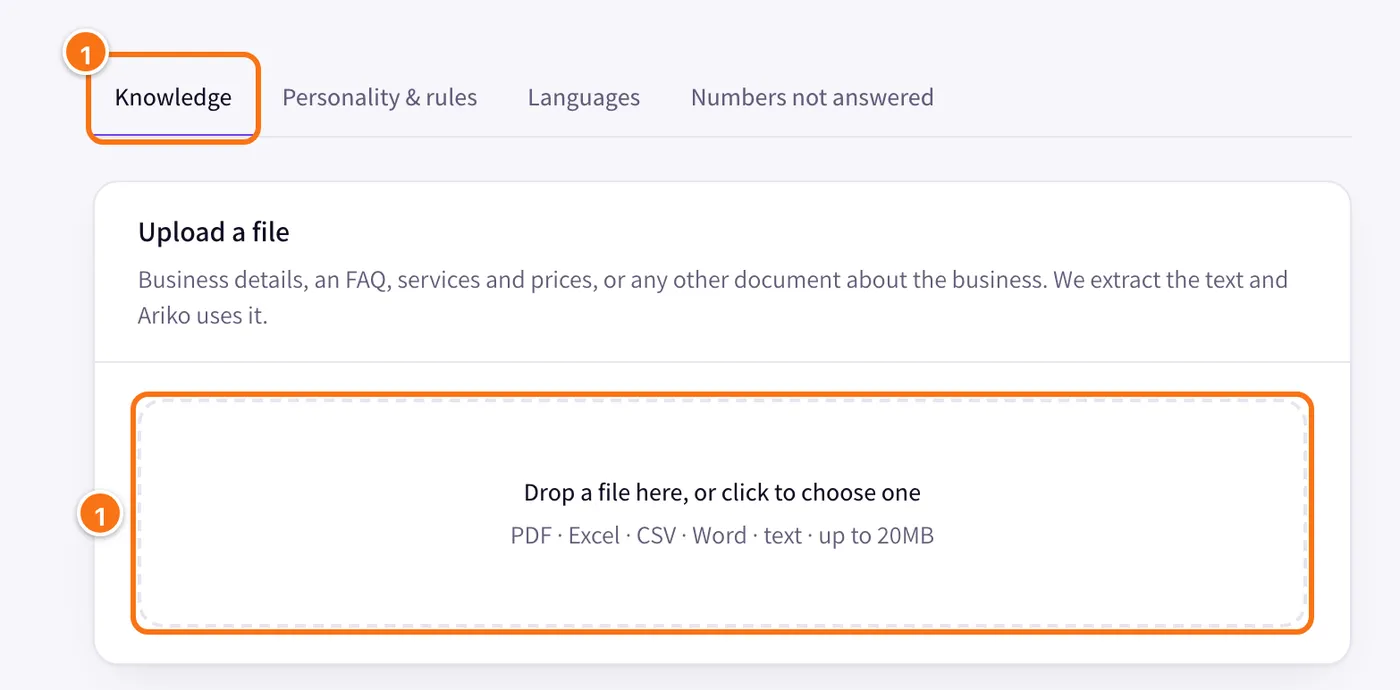
1. Open Ariko's brain and upload a file
In Ariko, open Ariko's brain, on the Knowledge tab. What is written here is the source of truth: what is not written here, Ariko does not make up.
In Upload a file, drop a file or click to choose one: PDF, Excel, CSV, Word or text, up to 20MB. The text is extracted and used straight away.
A scanned PDF that is only an image, with no text in it, cannot be read. Copy its text into the form in the next step instead.
-
2. Or type the information yourself
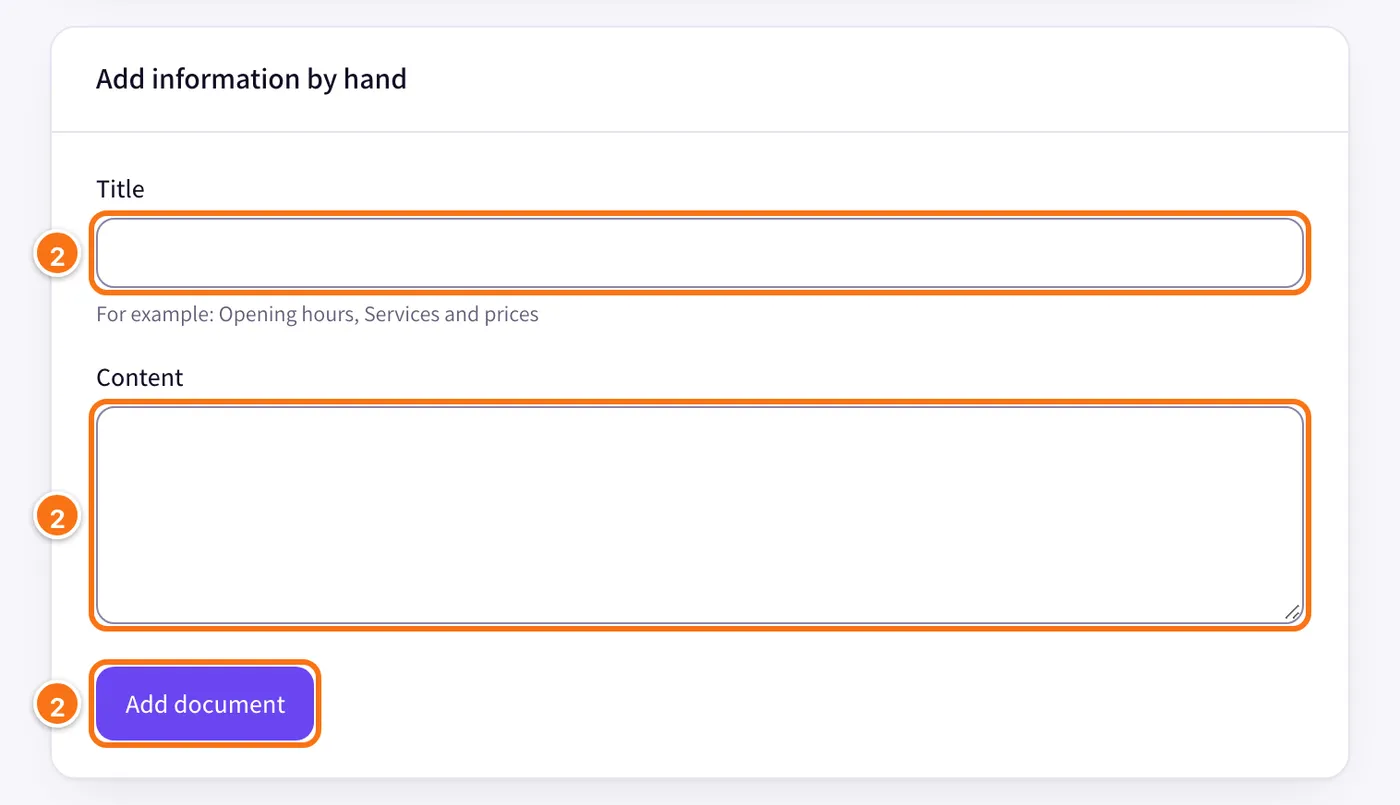
In Add information by hand, write a title and the content and press Add document. One document per topic: services and prices, address and directions, cancellation policy, frequently asked questions.
There are no separate fields for services, FAQs or policies. Each of them is a document, and Ariko reads all of them in every reply.
-
3. Let Ariko read your website
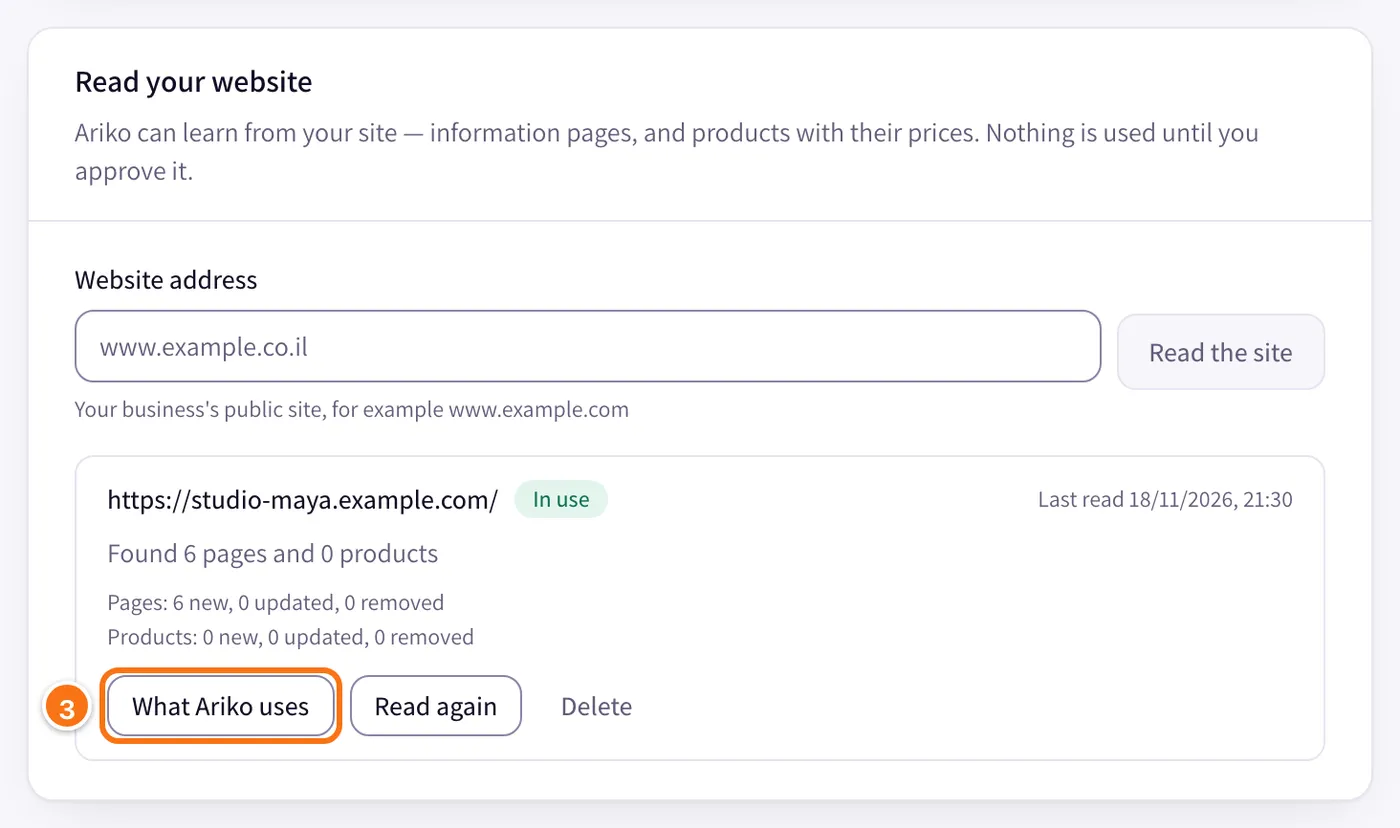
In Read your website, enter your website's address and press Read the site. Reading usually takes up to a minute and a half, and you can keep working meanwhile.
Nothing from the site is used before you approve it. Press Review and approve, leave out pages that don't fit, correct text and prices, and approve. Later, What Ariko uses lets you come back and change it.
Updated your site? Press Read again. The site is not read again on its own, and anything you corrected yourself stays as you left it.
-
4. Manage what is already there
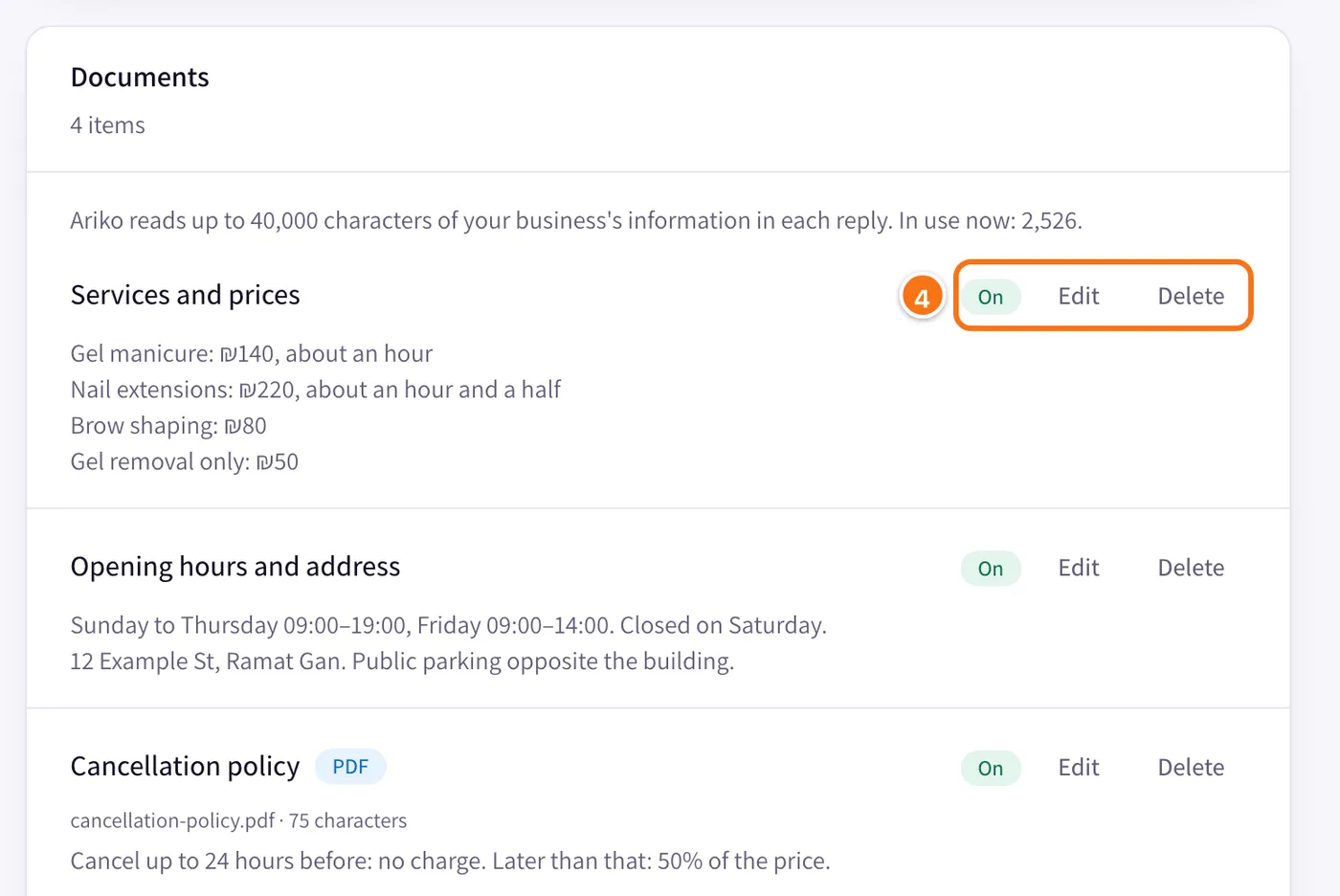
In the documents list, beside each document: the On / Off switch turns it off without deleting it, Edit opens it for correction, and Delete removes it for good. Only a manager can delete. An agent can add, edit and switch off.
In every reply Ariko reads up to 40,000 characters of your business's information: your own documents first, newest first, then the website. A document that doesn't fit is marked Partly used or Not used — no room. To make room, shorten a document or switch an old one off.
-
5. Write the rules and personality
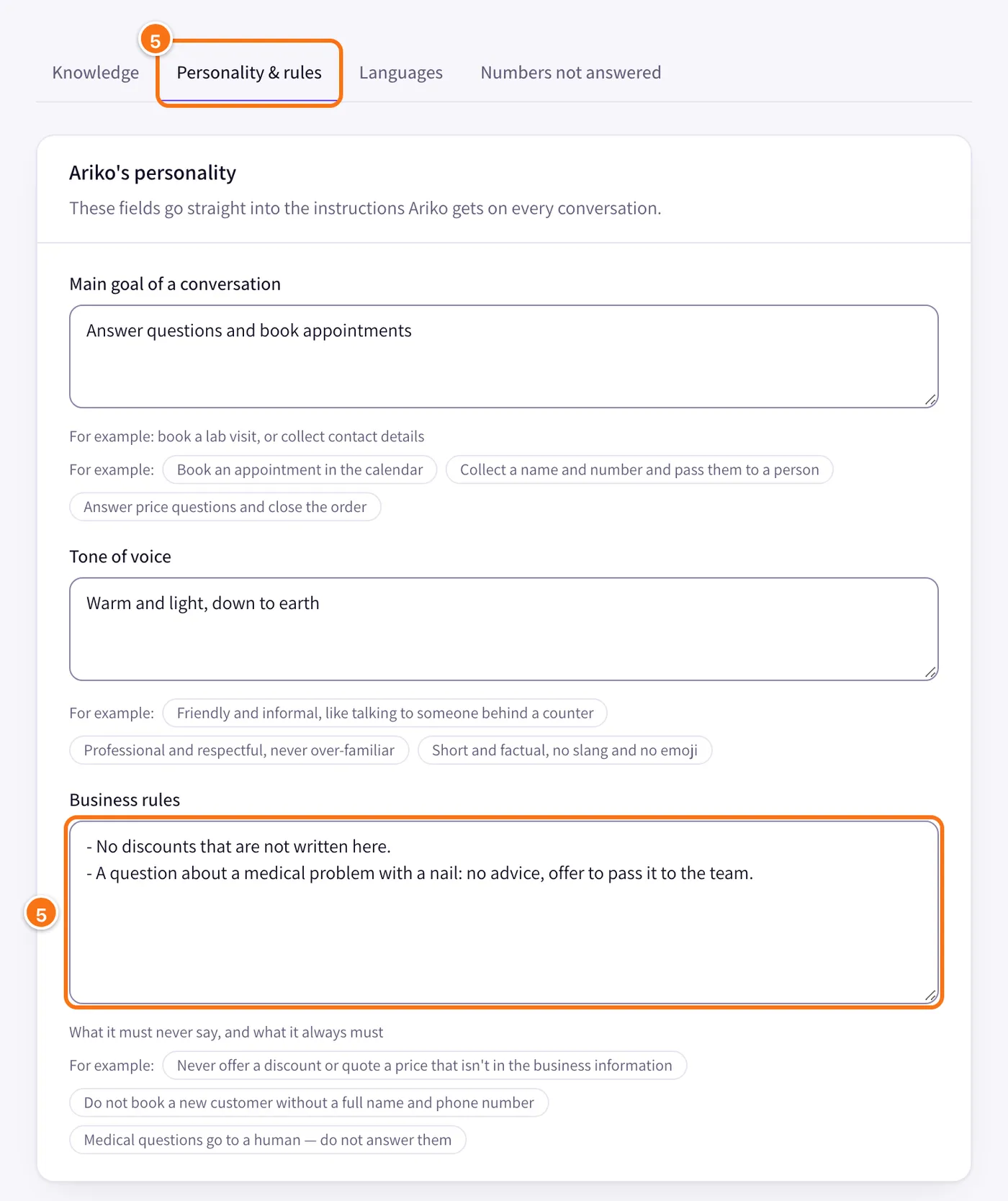
The Personality & rules tab has three fields: Main goal of a conversation, Tone of voice and Business rules. A document tells Ariko what is true; the rules tell it what it may and may not say.
Only a manager can change this tab. On the website chat the bot is the same as on WhatsApp, but it can have its own goal, style and rules: on the Website chat screen, in the Agent tab. The documents are shared by both.
-
6. Try it in the test chat
Open Test chat and write the way a customer would. Under Test as, choose WhatsApp or Website. Ask what customers really ask: price, hours, cancelling, parking.
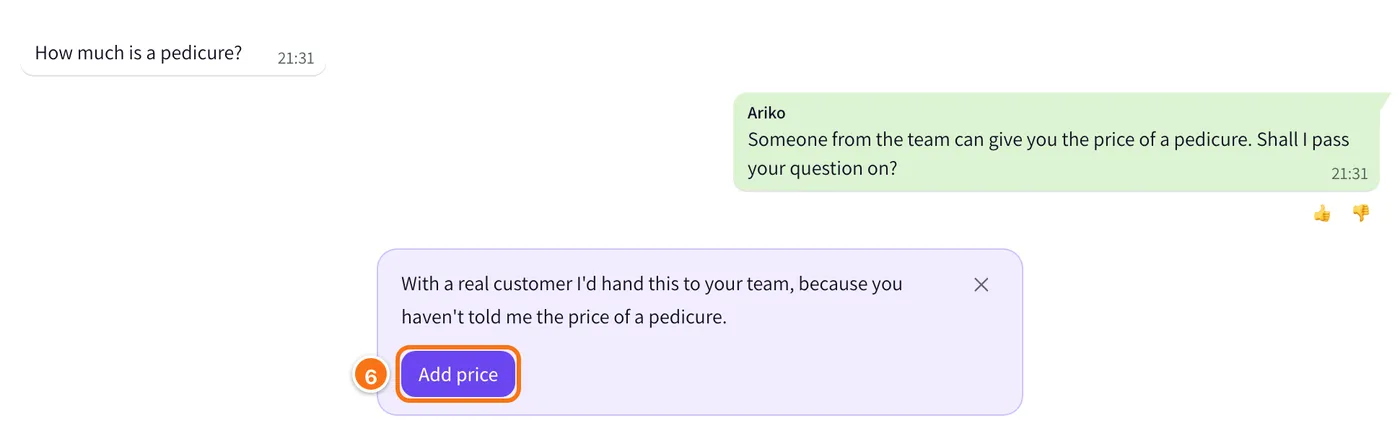
When Ariko found no answer in the information, a note only you can see appears under its reply, with a button such as Add price or Add the answer. Write the answer the way you would answer a customer, press Save, then Ask again. The answer is saved as a document in Ariko's brain.
On the free plan, Ariko's replies in the test chat count towards the monthly allowance of Ariko replies.
-
7. Fix a wrong answer
A wrong answer almost always comes from a document or a website page that says something wrong or out of date. Find it and correct it: Edit on the document, or What Ariko uses for a page from your site.
The short way: under the reply in the test chat or in the inbox, press 👎 (Poor reply), write what it should have said, and a manager presses Add to Ariko's brain. A new correction document is created. If the old document still says otherwise, correct it too, so two documents don't contradict each other.
Then press Start over and ask again. The previous conversation still holds the old answer, so a new conversation is the clean test.
What to write so Ariko answers well
| Topic | Write | Don't write |
|---|---|---|
| Prices | An exact price for each service, with the length: “Gel manicure: ₪140, about an hour” | “Prices vary, give us a call”. Then Ariko can only say someone from the team will answer |
| Policies | “Cancel up to 24 hours before: no charge. Later: 50% of the price” | Leaving it as “obvious”. A policy that isn't written, Ariko doesn't state |
| What you don't do | What you don't offer too: “We don't do laser hair removal” | Trusting it to work it out. For a “can you…?” that isn't written, it offers to pass it to the team |
| Sensitive matters | A clear rule: “No diagnosis or medical advice in the chat. Offer to book an appointment.” | General medical guidance, hoping it knows where to stop |
| Versions | One up-to-date document per topic. New prices? Update the existing one or switch the old one off | Adding a new document and leaving a contradicting old one beside it |
A beauty studio, for example. A “Services and prices” document: each treatment on its own line, with price and length. A “Cancellation policy” document: when you can cancel and what a late cancellation costs. In the rules: “No discounts that aren't written in the information.”
A clinic, for example. An “Address and directions” document: address, parking and accessibility (the days and hours are set in Business settings). A “Before your visit” document: what to bring and how to prepare. In the rules: “No diagnosis or medical advice. Anyone describing an emergency is sent straight to emergency services.”
Write the way you would answer a customer, in ordinary sentences. No formatting or headings needed. And what customers don't ask about can stay out, which leaves room for what matters.
Opening hours
Set your opening hours in Business settings, under Opening hours. That is where Ariko answers a customer who asks “when are you open?”, and it knows by itself whether the business is open right now and when it next opens. If a document also lists the hours, keep them the same as in Settings. A document can add details within the hours that Settings has no field for, such as a midday break or when the last class starts.
What changes while the business is closed depends on what you choose there. With Outside them — avoid promising an immediate reply, Ariko keeps answering but doesn't promise a reply or anything happening right now. With Only show the hours to the customer, it answers the same at every hour, and says the business is closed and when it opens only when the customer asks or when it hands them over to the team. If booking in the calendar is on and has no hours of its own, it books within these hours. The Google Calendar guide.
When Ariko doesn't know: handing over to the team
Ariko answers what it knows. For the rest it says someone from the team can answer, and offers to pass it on. It doesn't apologise, guess, or promise when the customer will hear back.
When the customer agrees, the conversation is marked Pending in the Inbox, a note goes on the customer's lead card, and an email alert goes to the Contact email in Business settings (or, if it is empty, to the managers). Meanwhile Ariko keeps answering other questions in the same conversation.
Once you answer the customer yourself, from the inbox or from your phone on a number connected alongside the WhatsApp Business app, the conversation is yours and Ariko stops answering in it. It comes back when you press Hand back to Ariko, or on its own, according to Ariko returns to a conversation by itself in Business settings.
A customer on WhatsApp who explicitly asks for a person is passed to you at once, and Ariko stops answering in that conversation. And once you have answered, add the answer to Ariko's brain, so next time it knows by itself.
How soon a change applies
- A document you added, edited, switched off or deleted, and the rules and personality: from the next message. Ariko reads the information again before every reply.
- Your website: reading usually takes up to a minute and a half, and the content is used only once you approve it. A change on the site itself comes in only after Read again and approval.
- A conversation already under way: Ariko also sees what it said earlier in it. In the test chat, start a new conversation with Start over.
Stuck?
I uploaded a file and Ariko doesn't know what's in it
Check the documents list: is the document On? Is it marked Not used — no room? If the file is a scanned PDF, there is no text to read. Copy the text into Add information by hand.
Reading the website failed
The message on screen says why: the site blocks crawlers, didn't load, or only loads in a browser. You can copy the text from the site into Add information by hand, or upload a file.
An agent on my team can't change the rules
Right. The rules, personality and languages, and deleting documents, are a manager's. An agent can add, edit and switch off documents. The team roles guide.
Ariko answers in the wrong language
The Languages tab in Ariko's brain sets the language it answers customers in. It is a setting of the business, not of your dashboard's language.
Didn't find the answer? Write to us at hello@ariko.ai and we'll help.
More guides: First steps · Connecting WhatsApp · Installing the website chat · Connecting Google Calendar · Adding team members