
How to connect Google Calendar to Ariko
Connect your calendar, say what can be booked, and Ariko arranges appointments on its own — against your real availability.
Updated:
-
1. Open the calendar settings
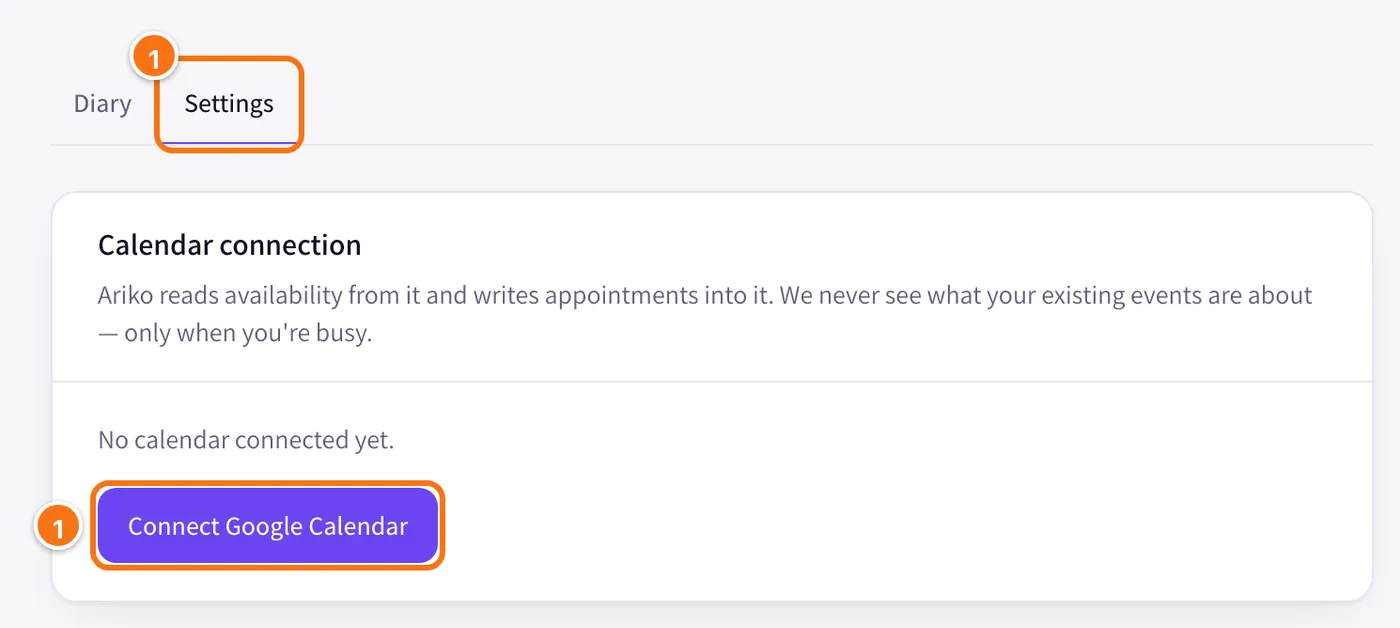
In Ariko, open Calendar & appointments, go to the Settings tab and press Connect Google Calendar.
Ariko reads availability from it and writes appointments into it. We never see what your existing events are about — only when you're busy.
-
2. Approve in Google
A Google screen opens. Choose the Google account whose calendar the business uses. On the permissions screen tick every box and continue. You come back to Ariko on your own at the end.
Tick every box: without permission to write to the calendar, Ariko cannot book anything in it.
-
3. Choose the target calendar
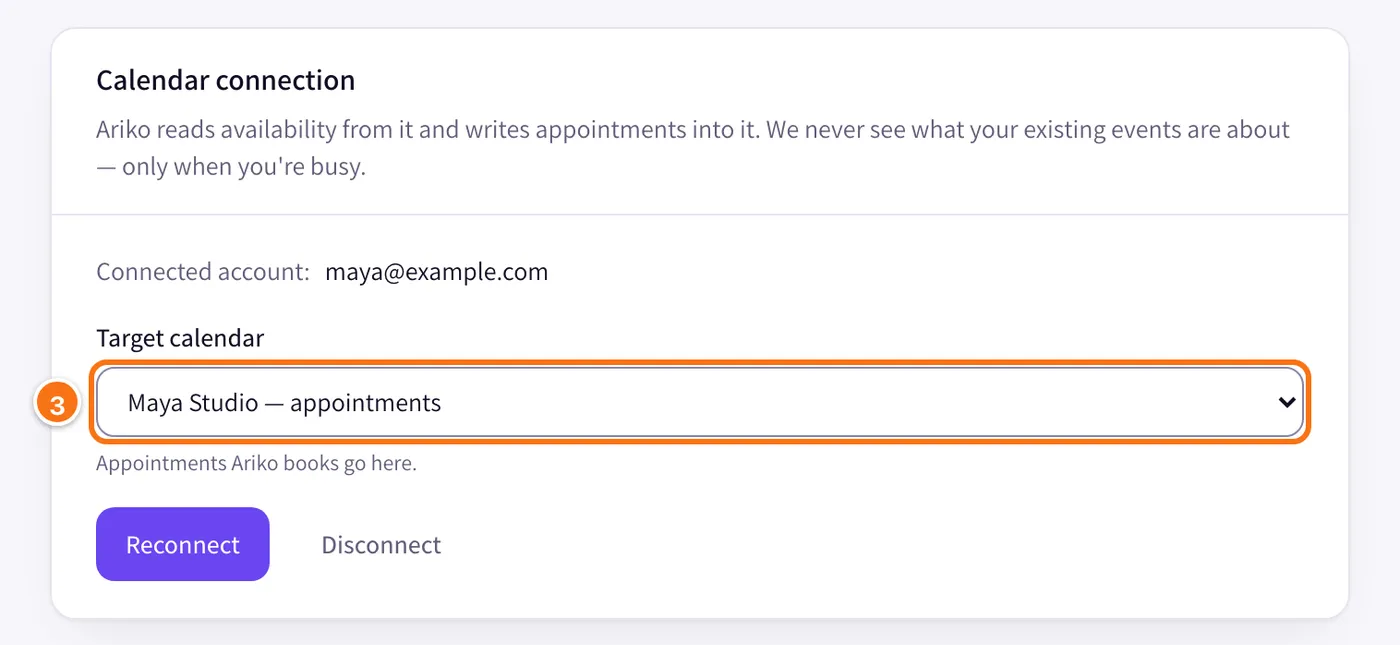
Under Target calendar, choose the calendar appointments go into. Appointments Ariko books go here.
-
4. Set what can be booked
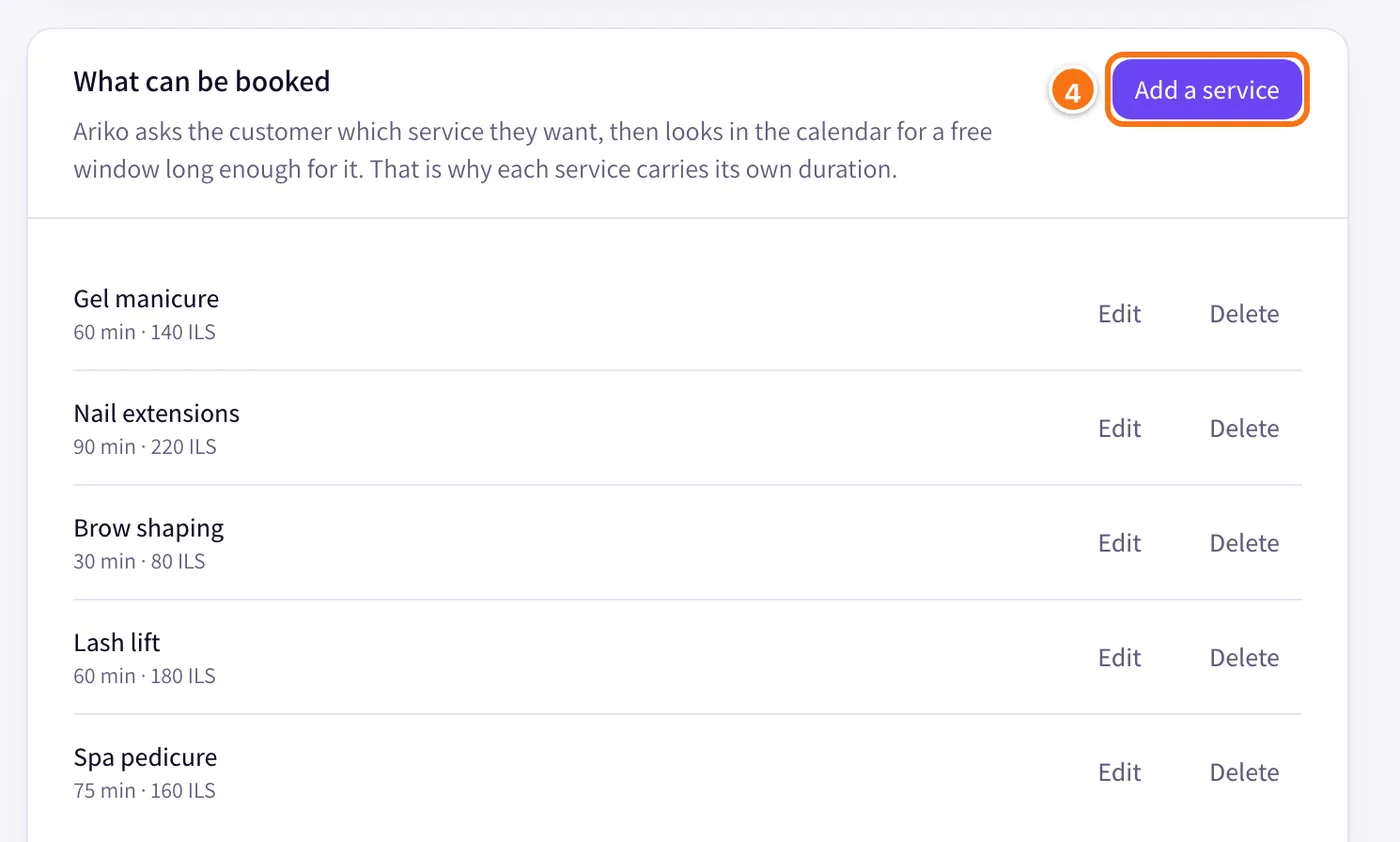
Under What can be booked, press Add a service and give each service a name and a length. Ariko asks the customer which service they want, then looks in the calendar for a free window long enough for it. That is why each service carries its own duration.
-
5. Check the bookable hours
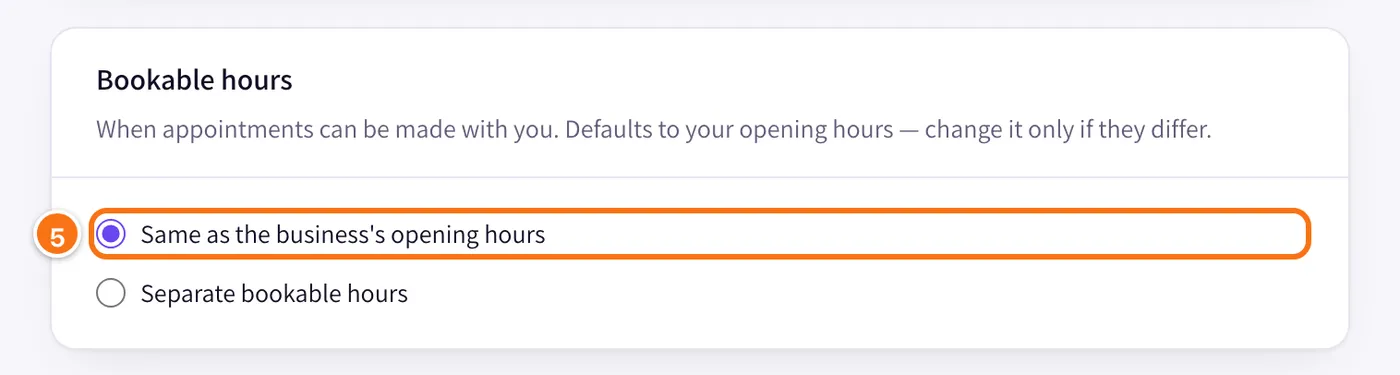
Bookable hours: When appointments can be made with you. Defaults to your opening hours — change it only if they differ. For instance: phones answered 09:00–18:00, but people only seen until 14:00.
-
6. Turn booking on
Tick Allow Ariko to book appointments. With this on, Ariko checks your real availability, offers the customer times, and books the appointment itself.
Want to approve each appointment yourself? Also tick Every appointment waits for my approval.

Stuck?
Google did not grant every permission
Google did not grant every permission. For Ariko to book, tick every box on Google's screen. Press Connect Google Calendar again and tick everything.
It says access to the calendar has lapsed
Access to the calendar has lapsed — most likely revoked from the Google account. Ariko can't book anything until you reconnect. Press Reconnect in the calendar settings.
Ariko finds no free time at all
Set when appointments can be made before turning this on. With no hours Ariko finds no free time at all. Also check there is at least one service, and that events in the calendar don't fill every hour.
Can Ariko see what my events say?
Ariko reads availability from it and writes appointments into it. We never see what your existing events are about — only when you're busy.
How do I disconnect the calendar?
In the calendar settings, press Disconnect. After that Ariko books nothing until you connect again.
Didn't find the answer? Write to us at hello@ariko.ai and we'll help.
More guides: First steps · Connecting WhatsApp · Installing the website chat · Adding team members · Your business's information